

Setup guide · BingX
Sync, journal and backtest in five steps.
Connect a read-only key, write your SOP, tag your trades, journal them. Trades arrive on their own after step 1.
Create your account, then link BingX
Sign up, get in, and connect a read-only BingX key.
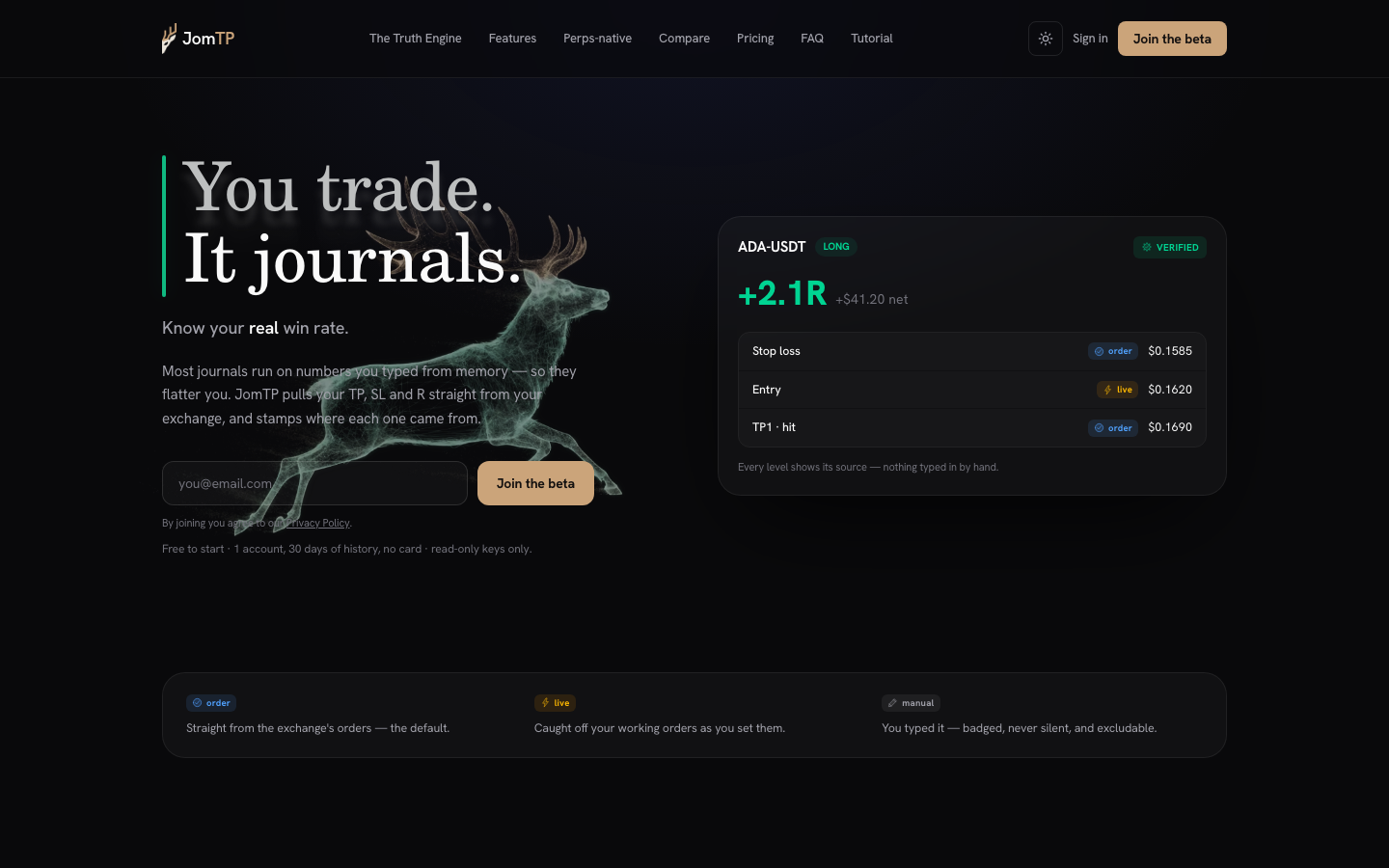
1.1On jomtp.com, click Sign in.
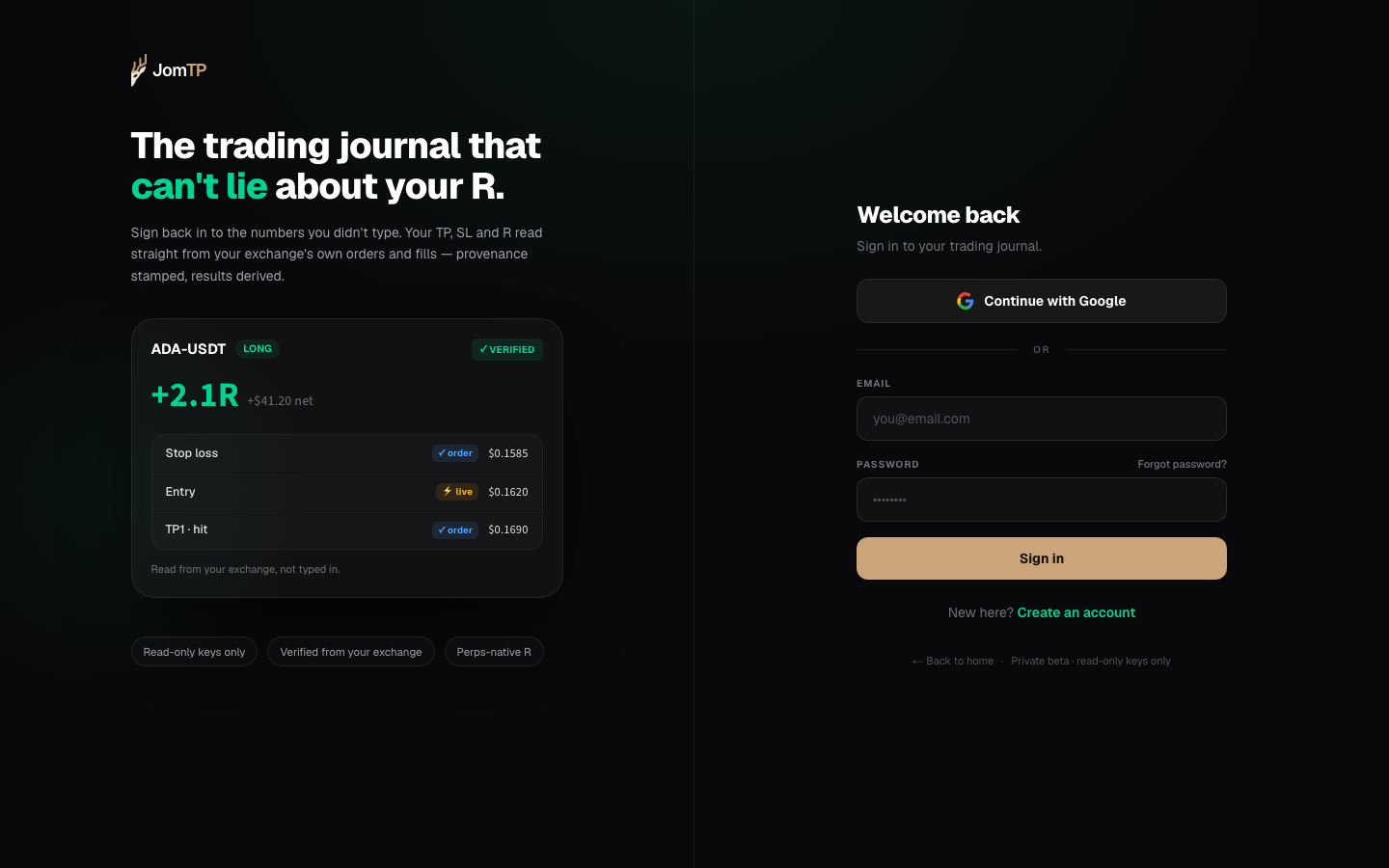
1.2You don't have one yet — click Create an account.
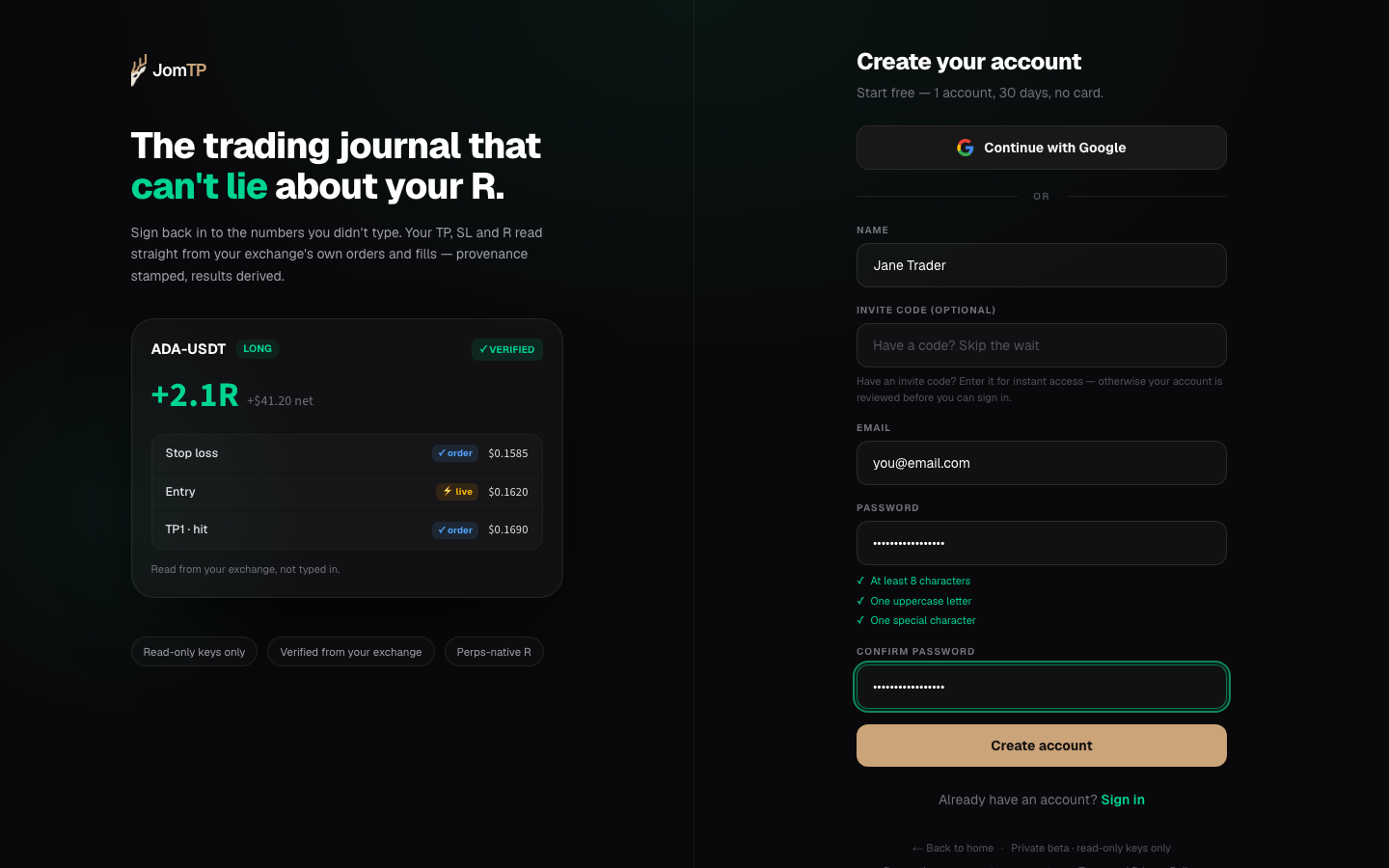
1.3Fill in your name, email and password 1, then Create account 2. If whoever referred you gave you a code, put it in Invite code here — that gets you in straight away.
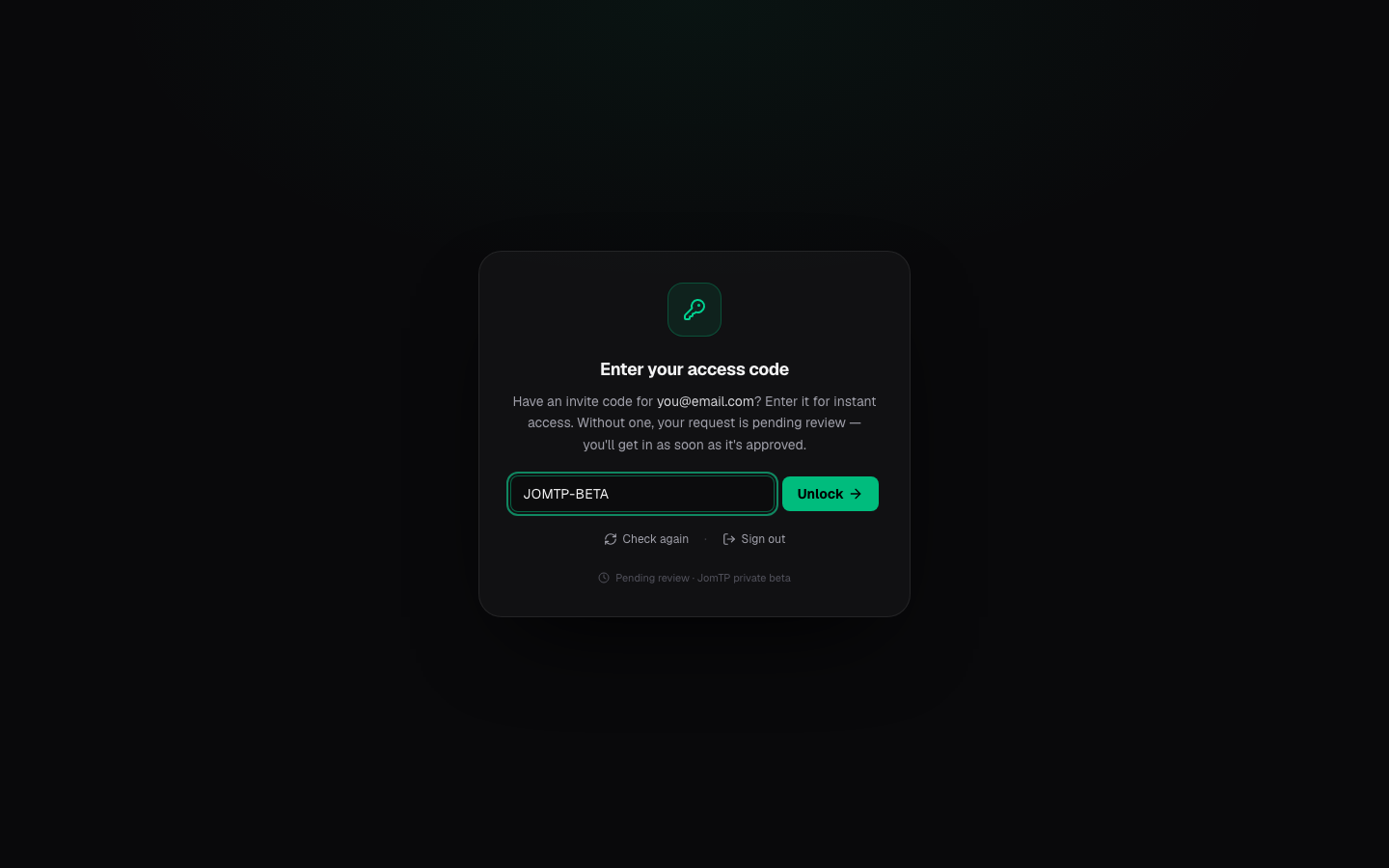
1.4Signed up without a code? You land here. Enter the code from your referrer 1 and press Unlock 2. Without one your account waits for review.
1.5Open Accounts in the sidebar 1, then click Add Account 2.
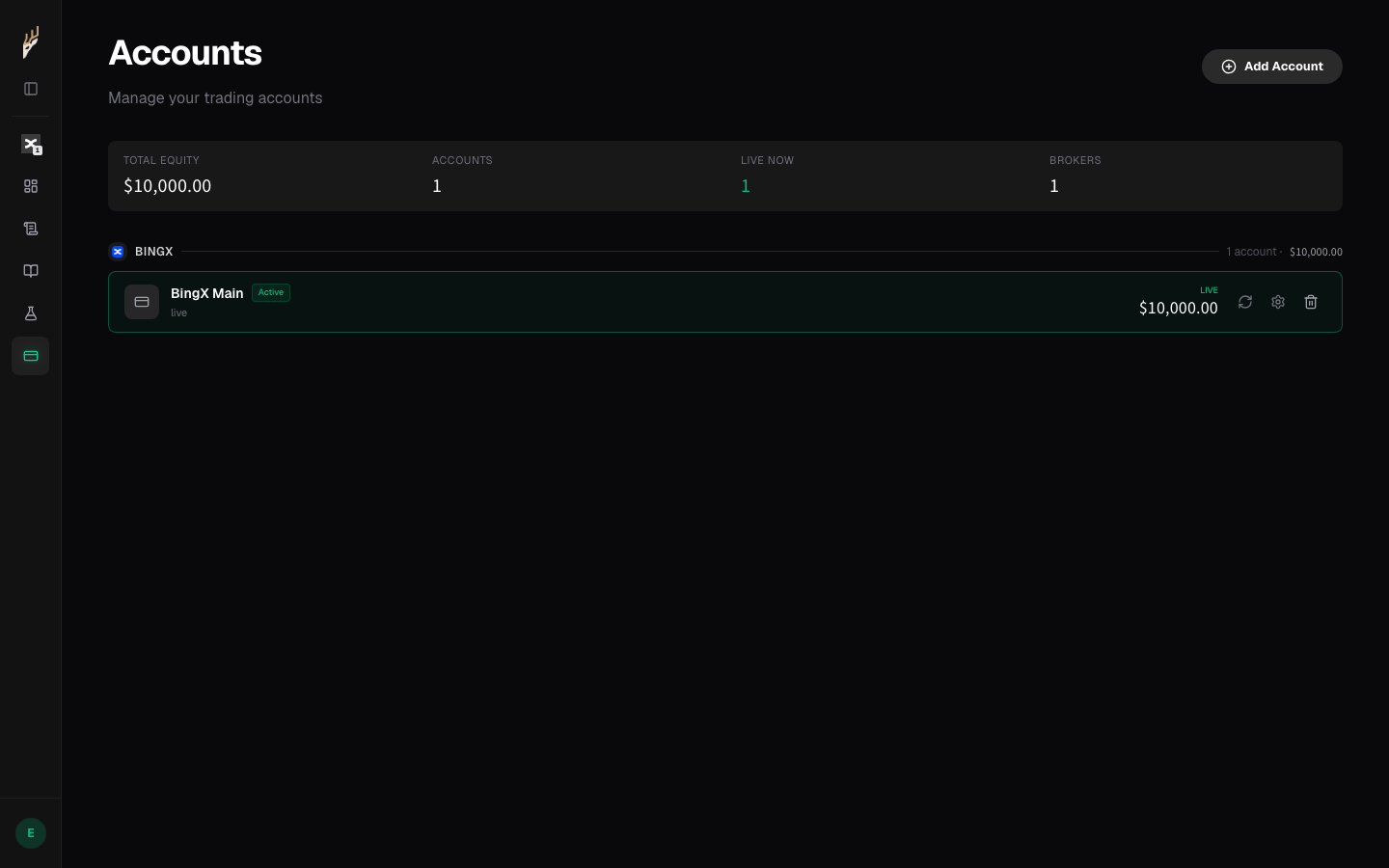
1.6Choose Sync Account.
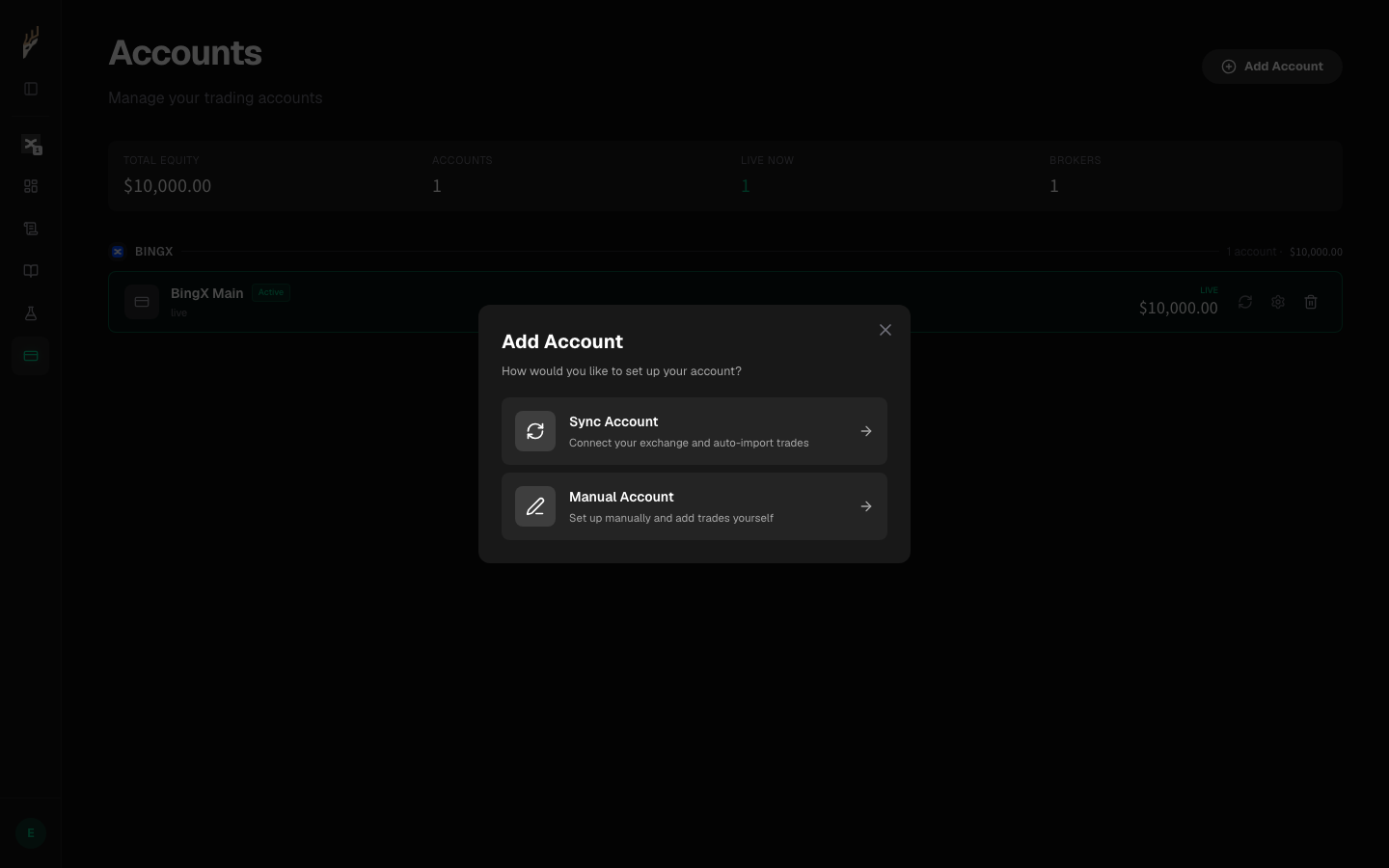
1.7Pick BingX, then Auto-sync. It now asks for an API key — so leave this open and go get one.
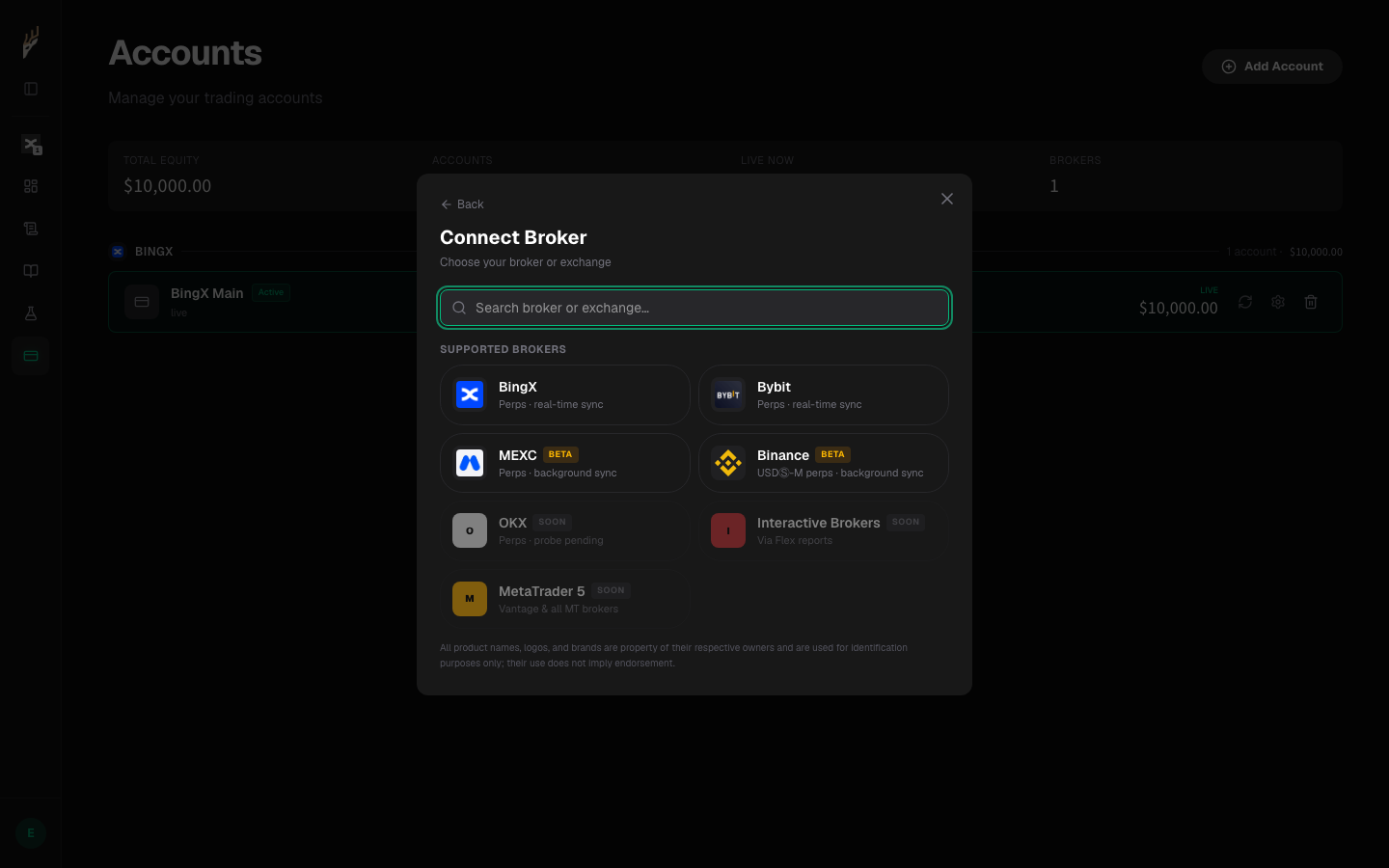
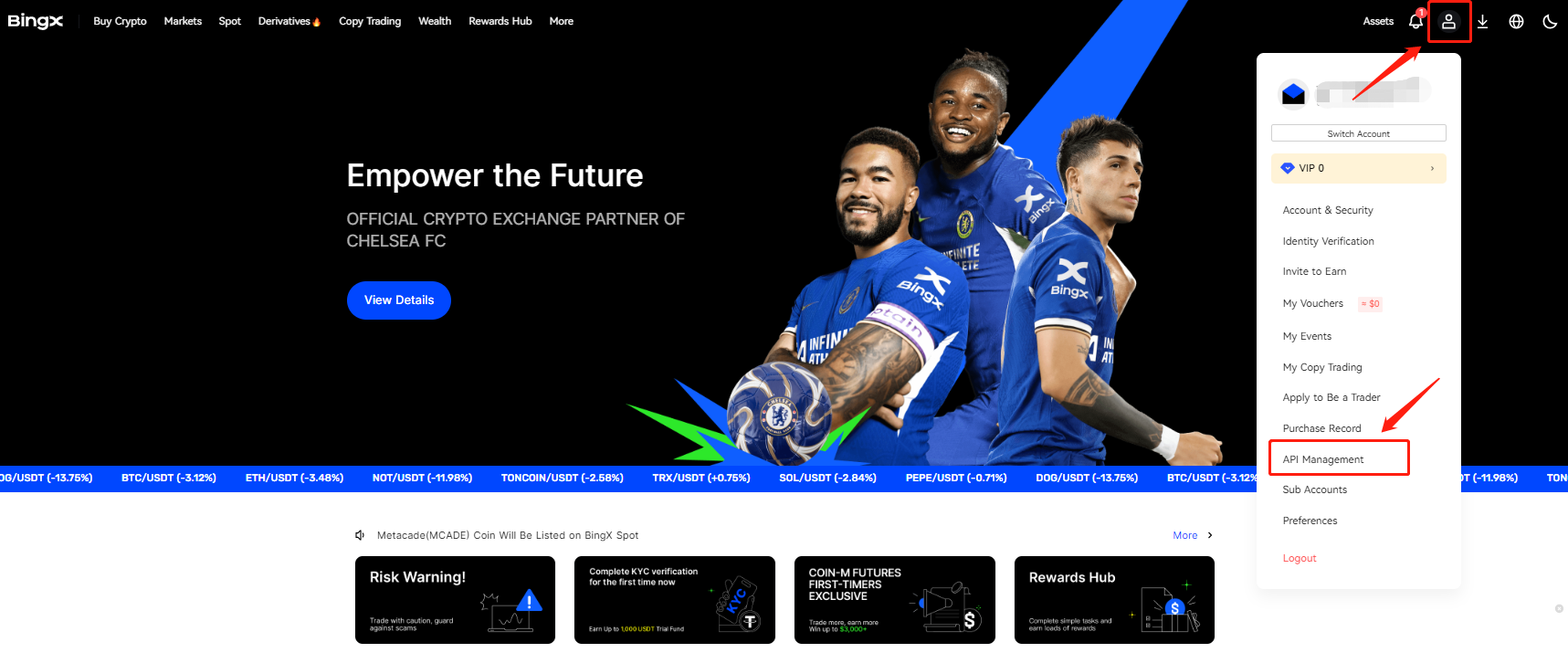
1.8In another tab, sign in at bingx.com, click your profile icon (top right), then API Management.
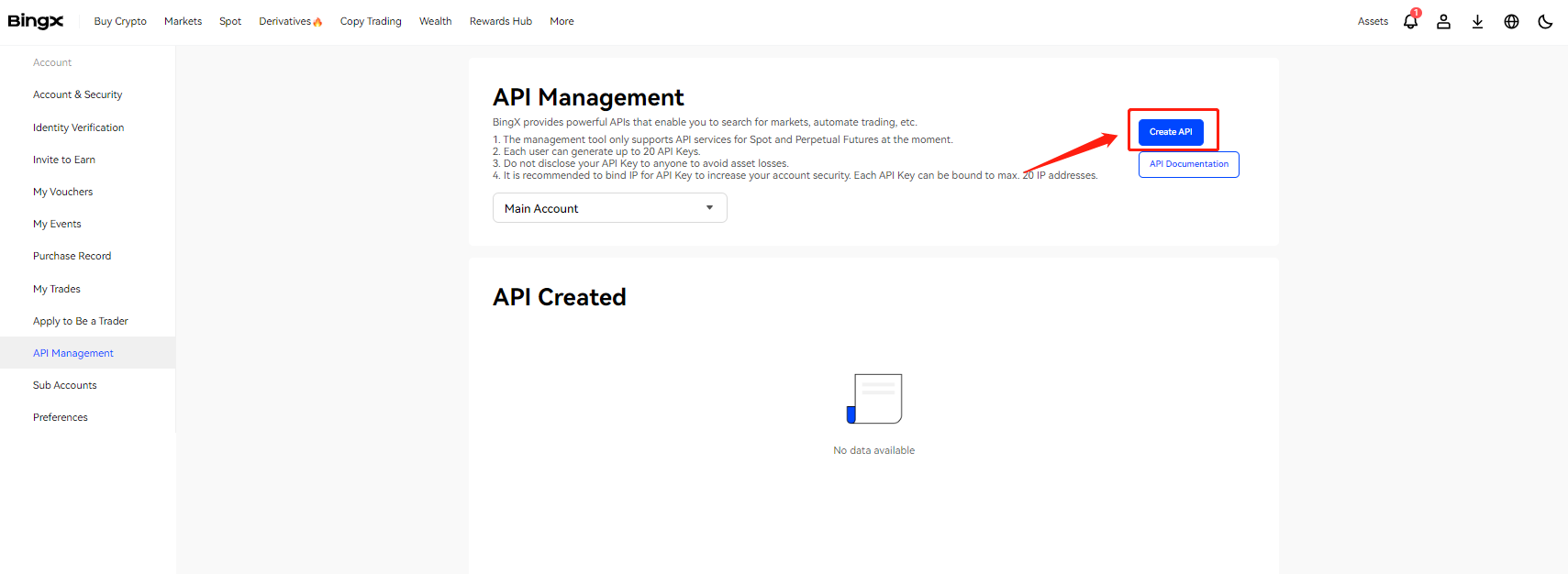
1.9On the API Management page, click Create API.
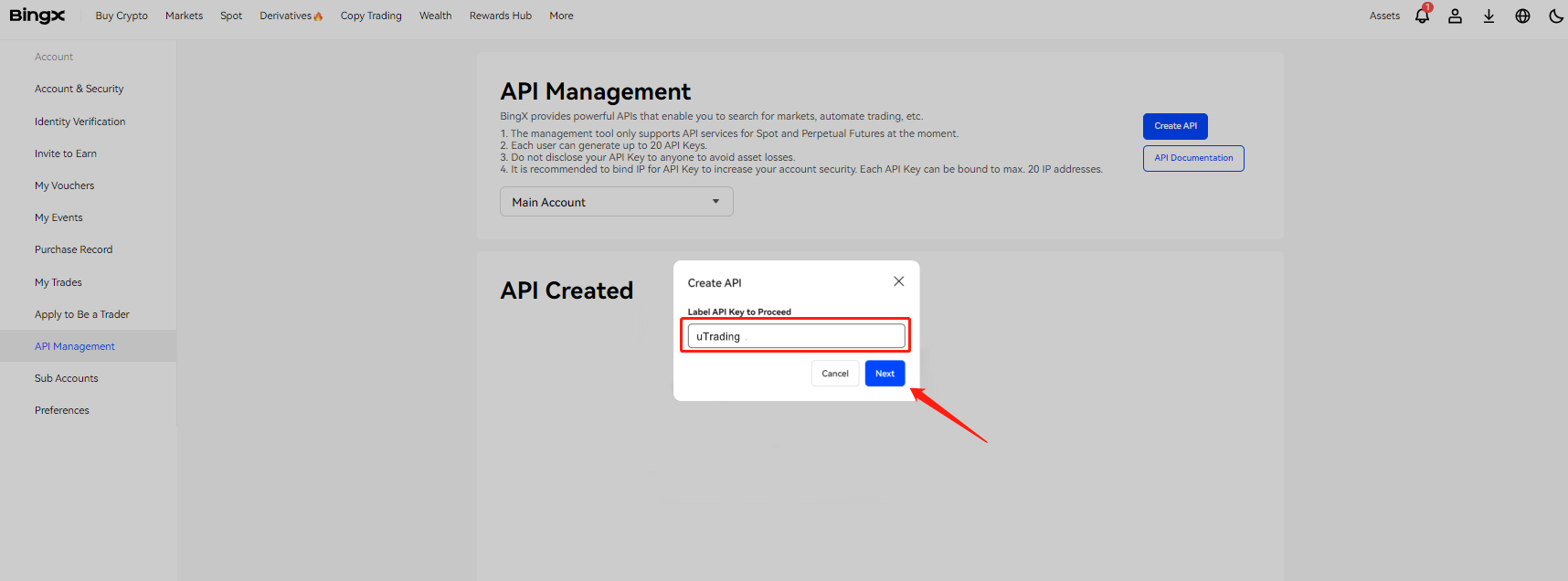
1.10Name the key (e.g. “JomTP Journal”). Leave Read ticked and everything else alone, leave the IP whitelist empty, then Confirm.
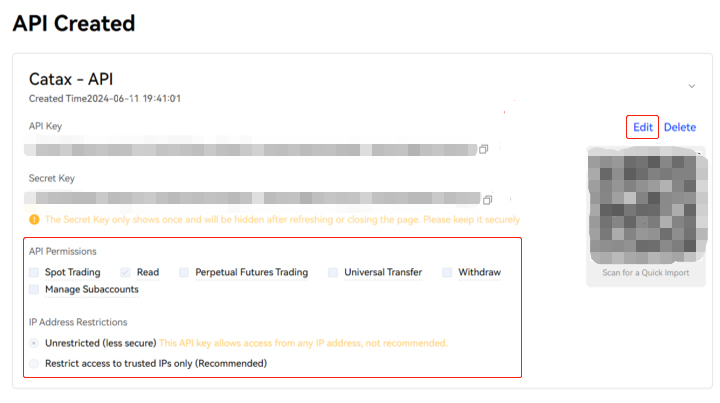
1.11Copy the API Key and the Secret Key. The secret is shown once.
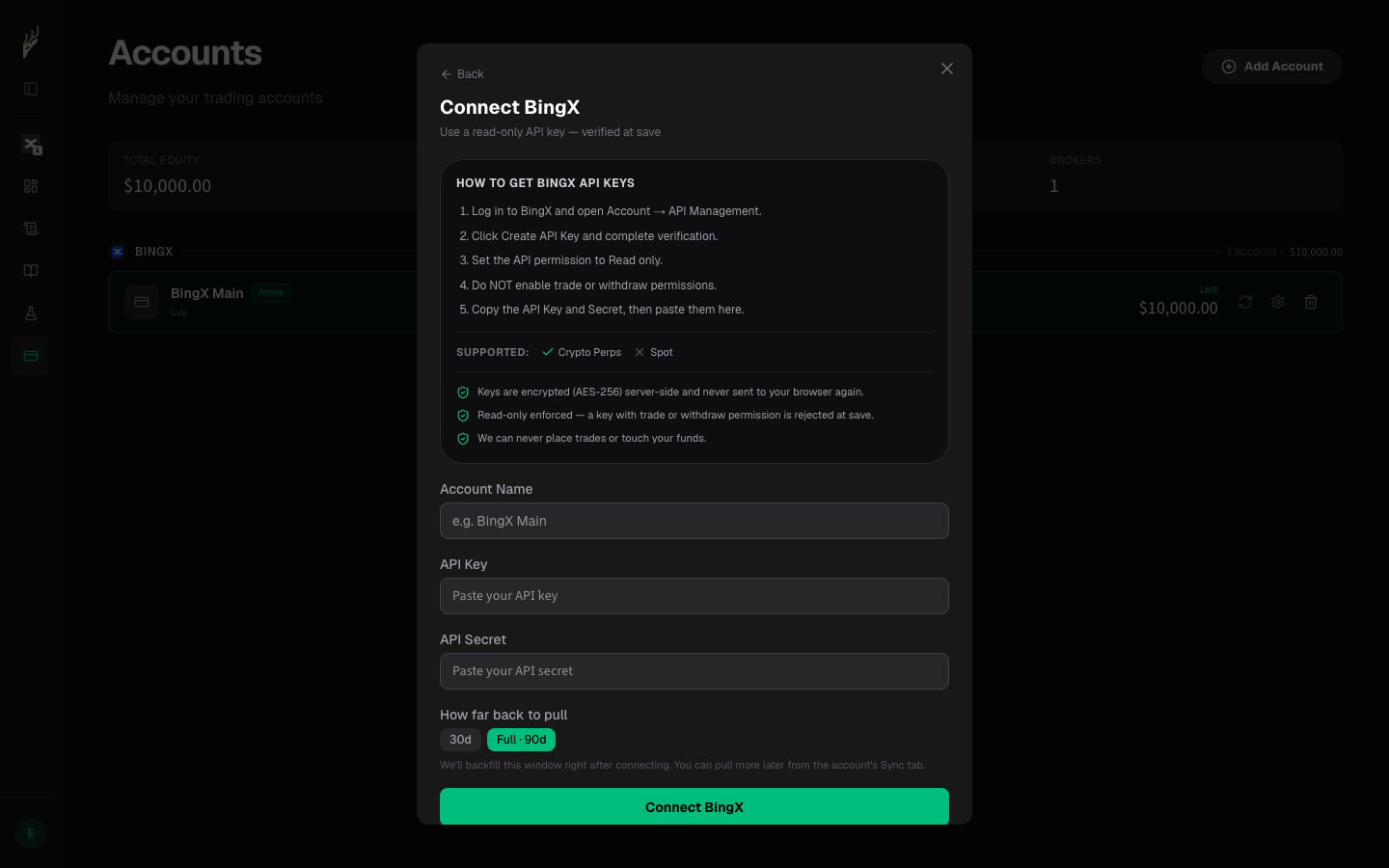
1.12Paste both keys into the form you left open 1, then Connect BingX 2. We backfill as much history as your exchange will serve — around 90 days on BingX, up to two years on Bybit.
Write your SOP as a Playbook
Turn your rules into tickboxes the playbook can score.
2.1Click Add playbook 1, name it, pick scalp, intraday or swing, then add rules by category 2.
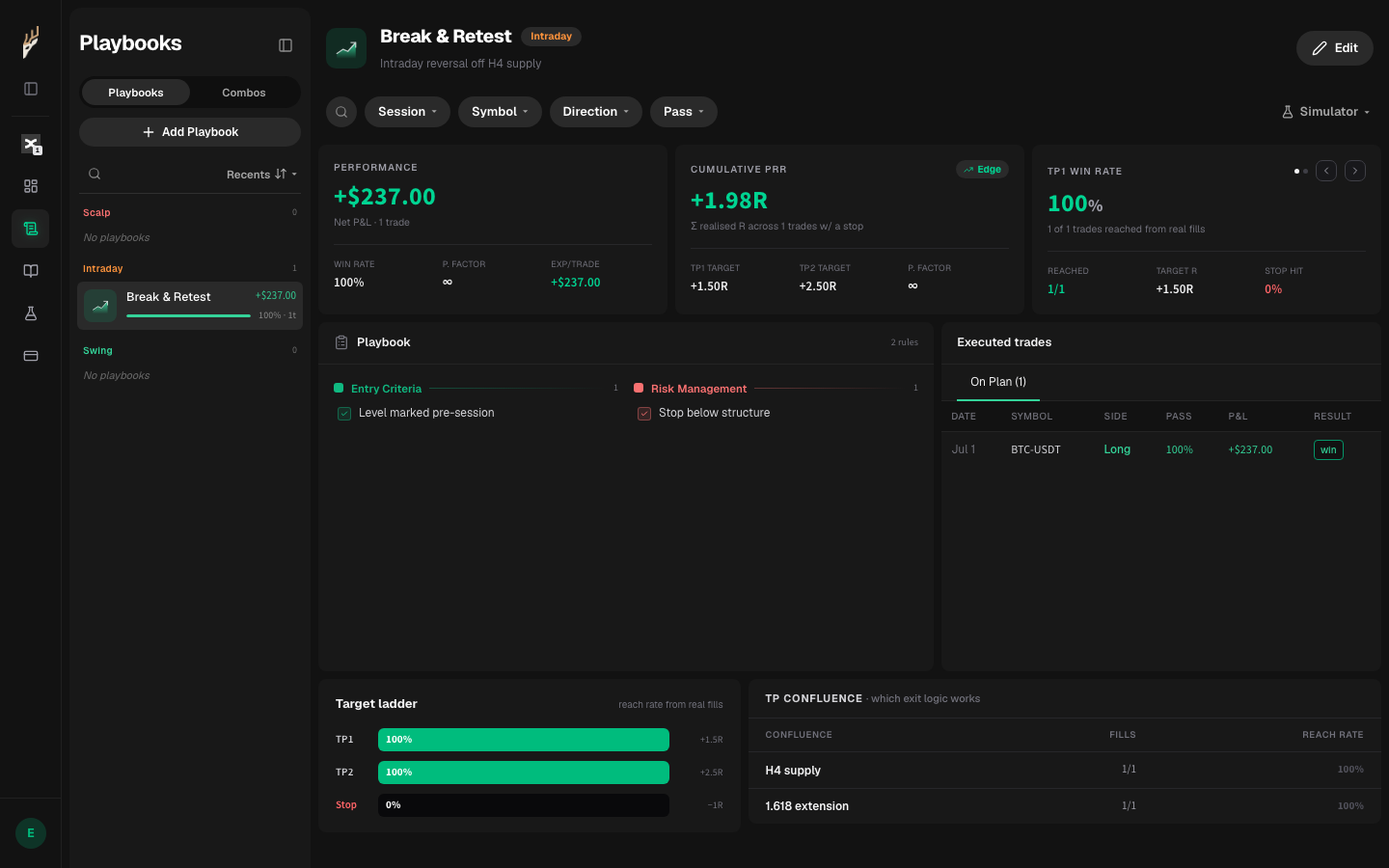
Tag playbook & confluence
Add the plan you ran and the reason each price sat where it did.
3.1Open Journal and click into a trade.
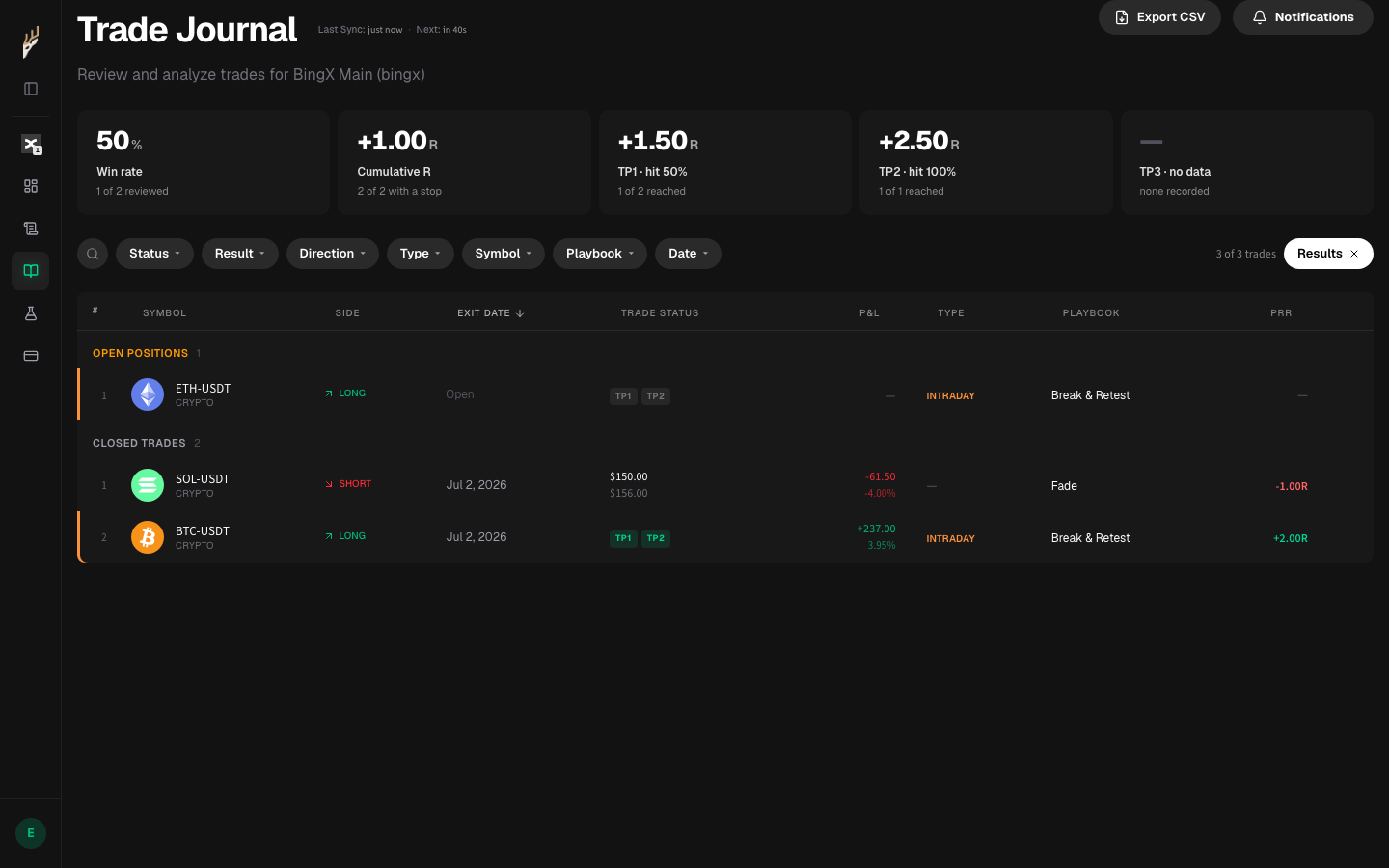
3.2Open the Playbook tab 1, press + Add to attach the playbook you traded, then tick the rules you actually followed 2. A freshly synced trade arrives with no playbook on it, so the checklist stays empty until you attach one.
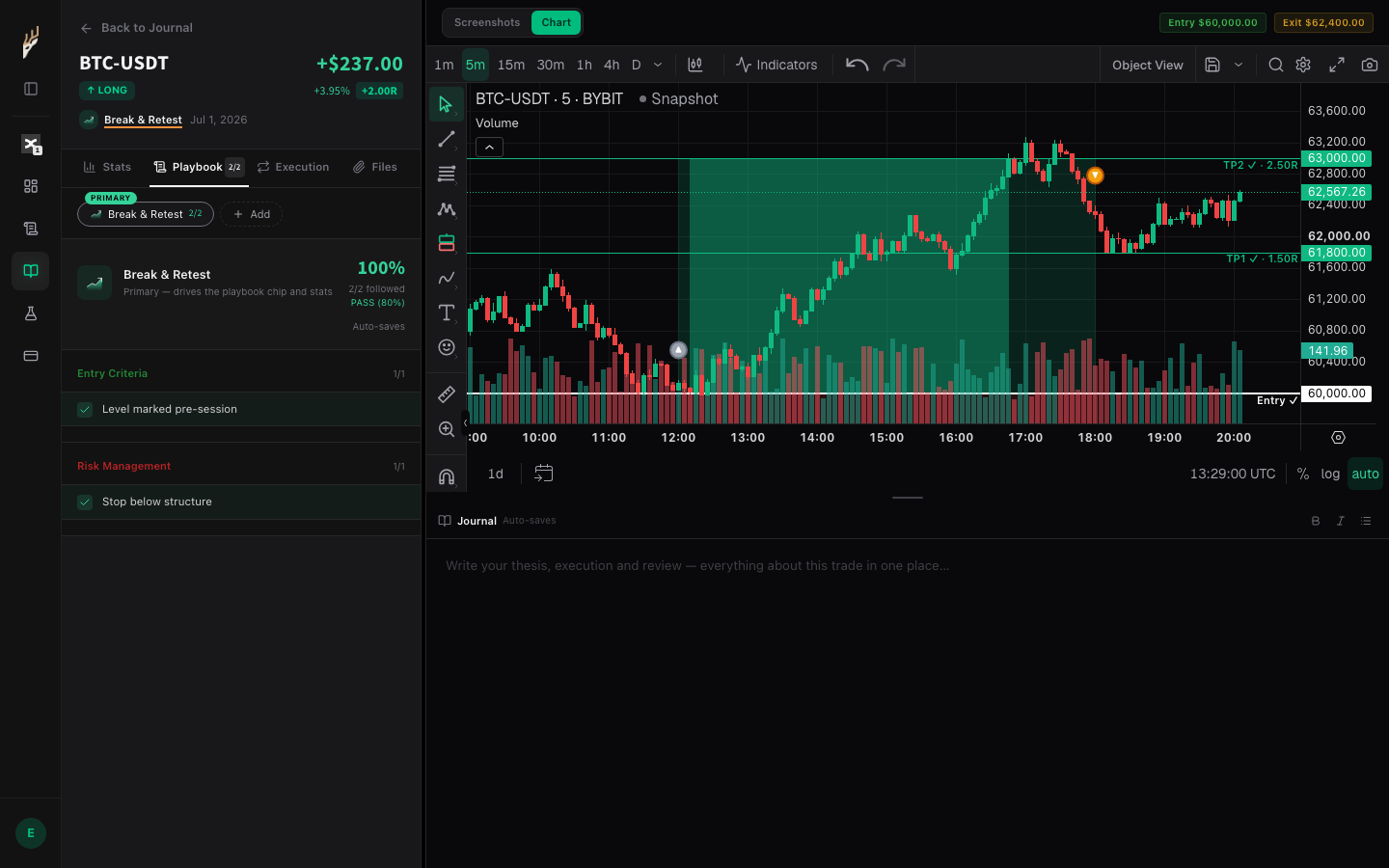
3.3Back on the Stats tab, tag Confluence on each level — why that price sat there. The chip picks from your own list; Edit list… adds a term you use that isn't there yet.
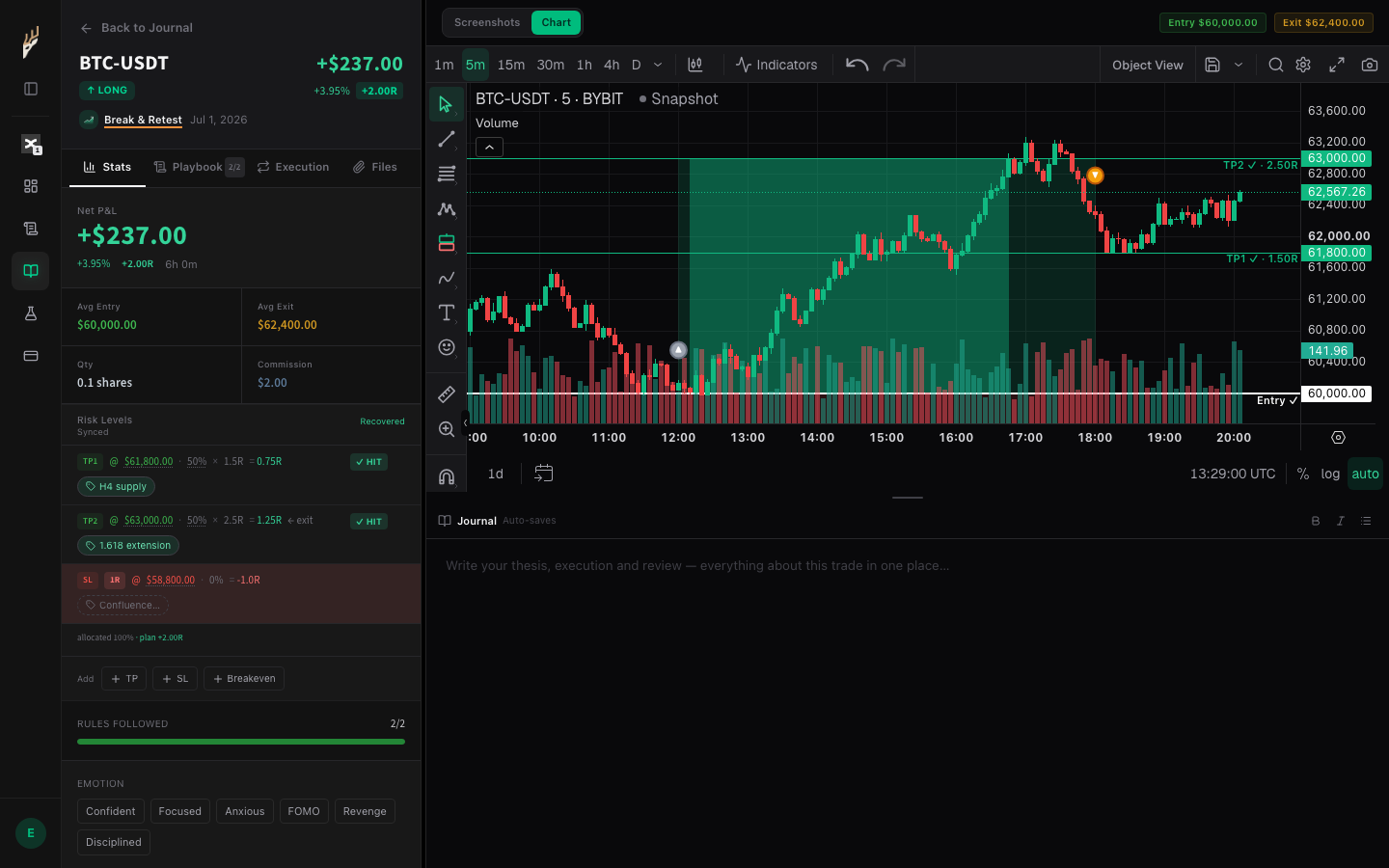
Write the journal
Record what the exchange cannot see.
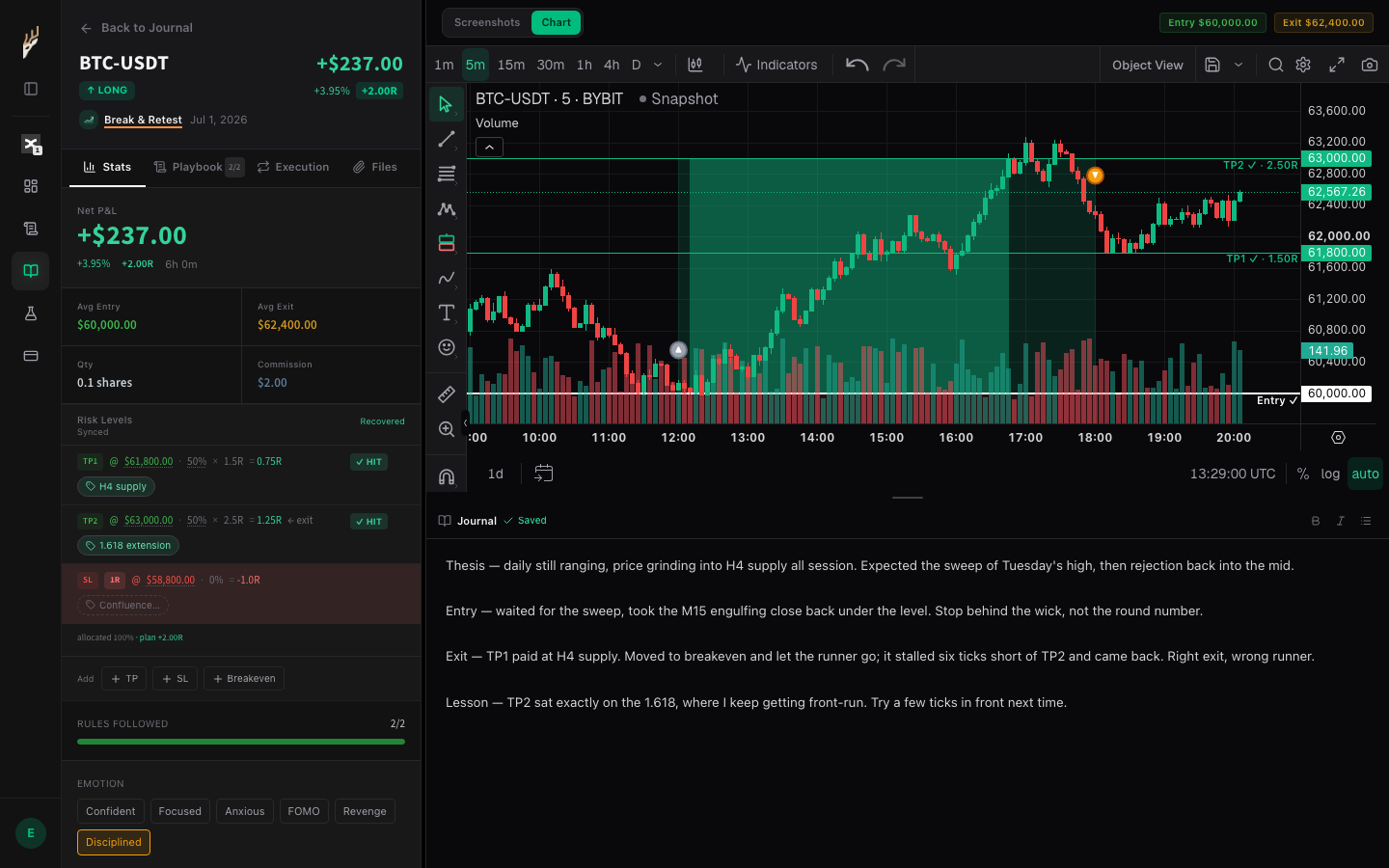
4.1Write in the Journal pane 1, then tag the Emotion 2.
Backtest a setup on replay
Replay a coin bar by bar and let the engine log the R.
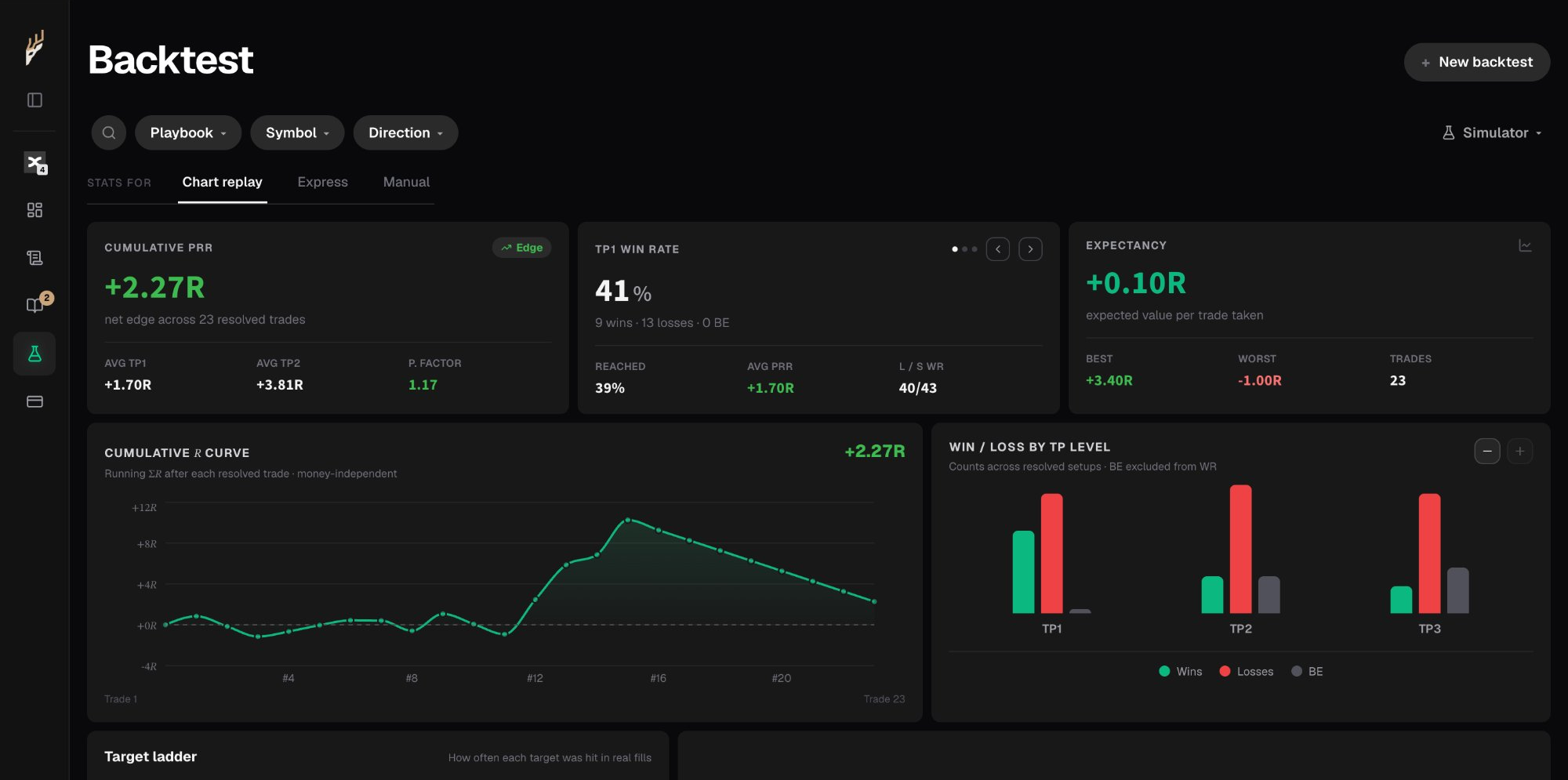
5.1Open Backtest in the sidebar, then click New backtest.
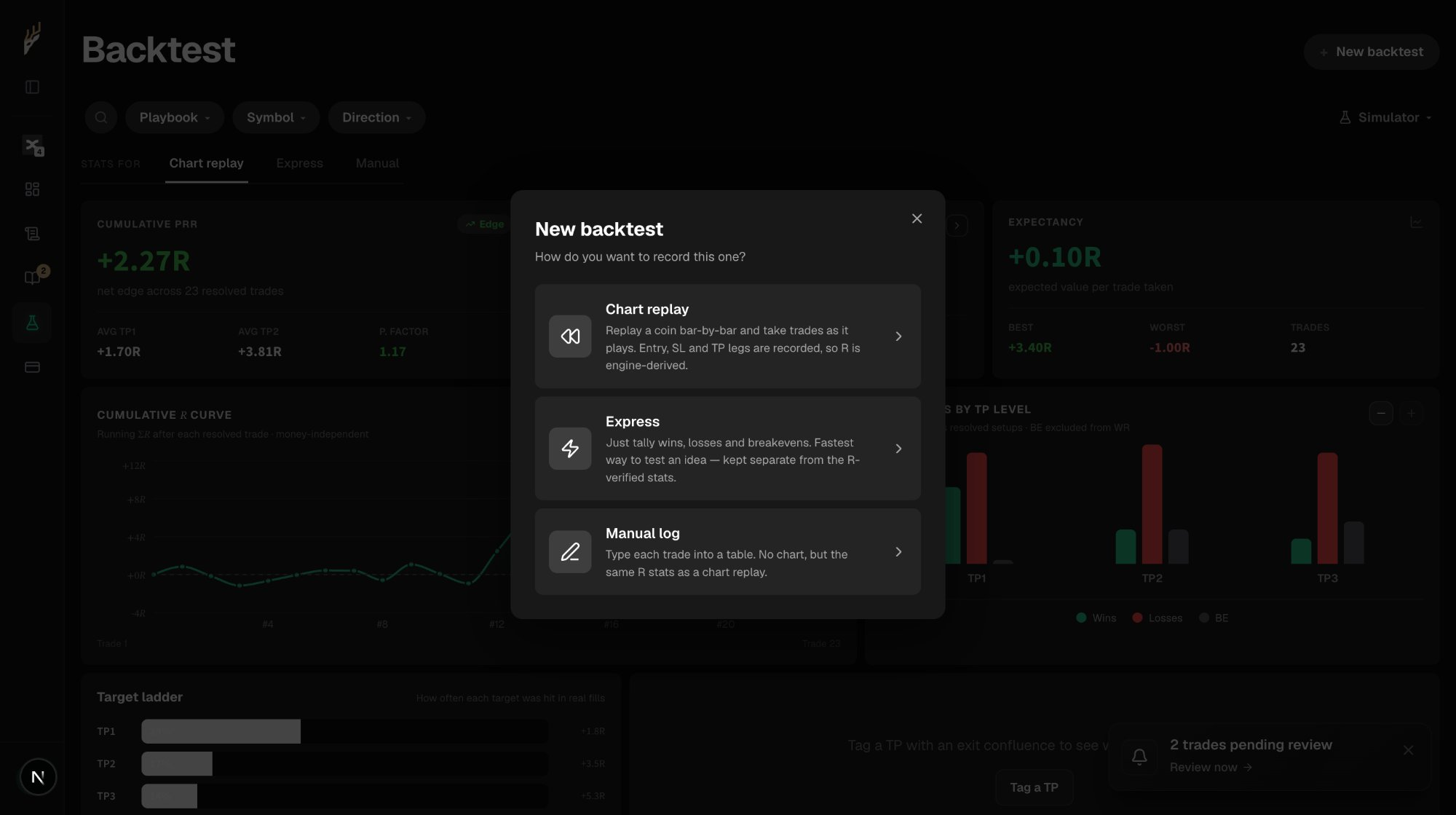
5.2Pick Chart replay. It walks the chart bar by bar and records the entry, the stop and every take-profit leg, so the R is derived by the engine instead of typed by you. Express and Manual log keep their own tally, separate from these R-verified stats.
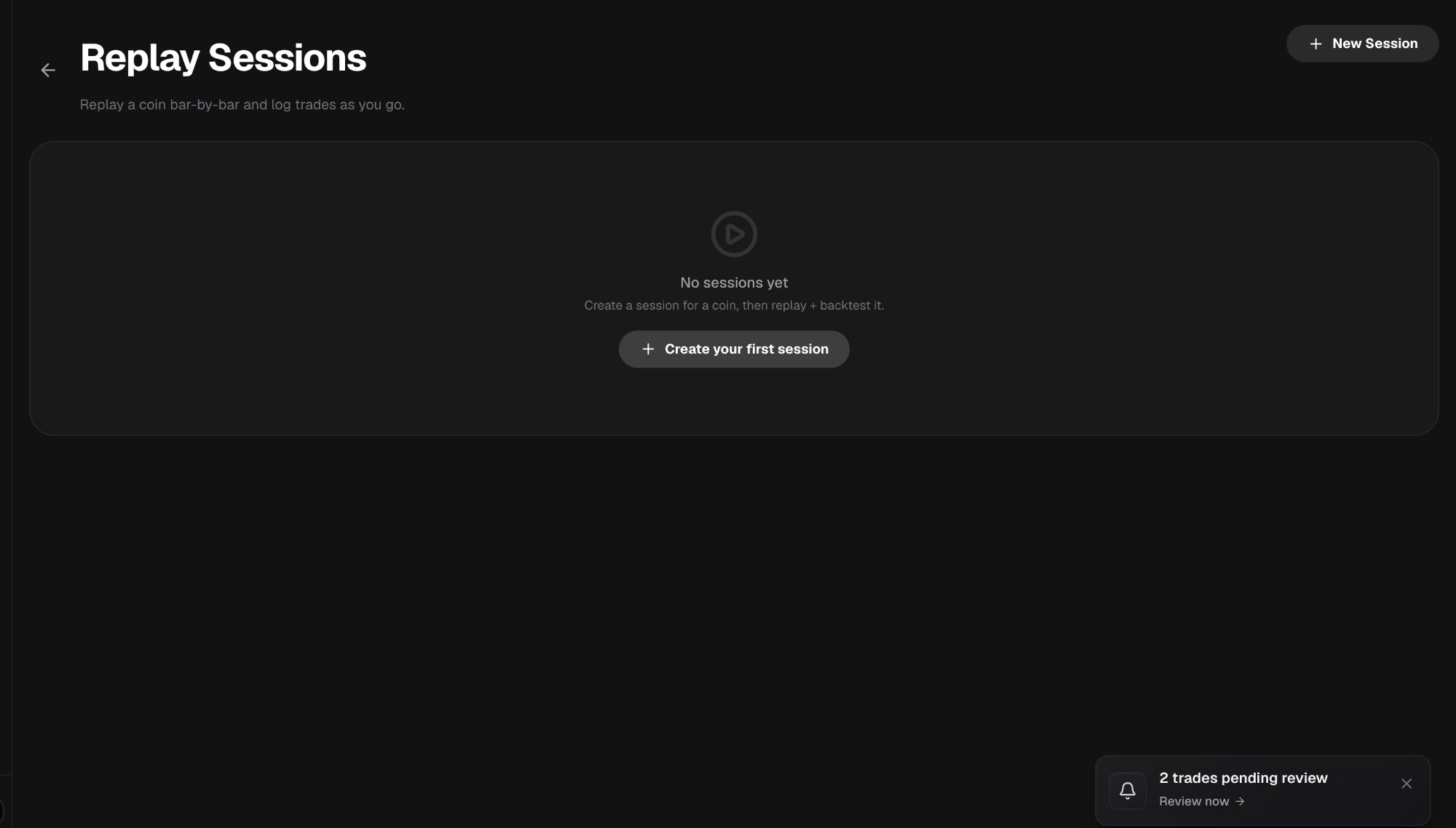
5.3A session is one coin on one timeframe. Press Create your first session.
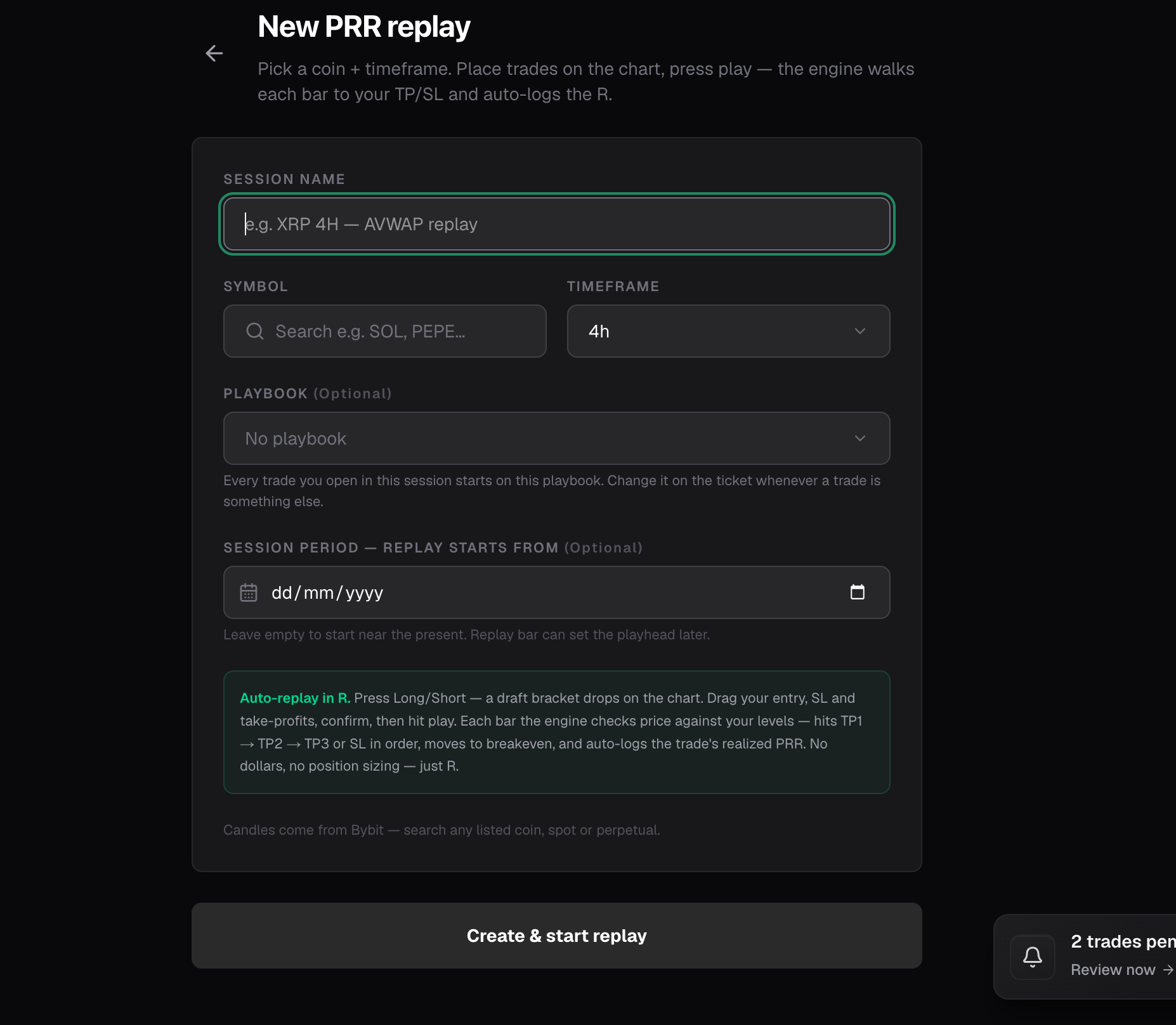
5.4Name the session 1, then choose the Symbol and the Timeframe 2. A playbook picked here starts on every trade you open in the session — change it on the ticket whenever a trade is something else. Leave the date empty to start near the present. Then press Create & start replay 3.
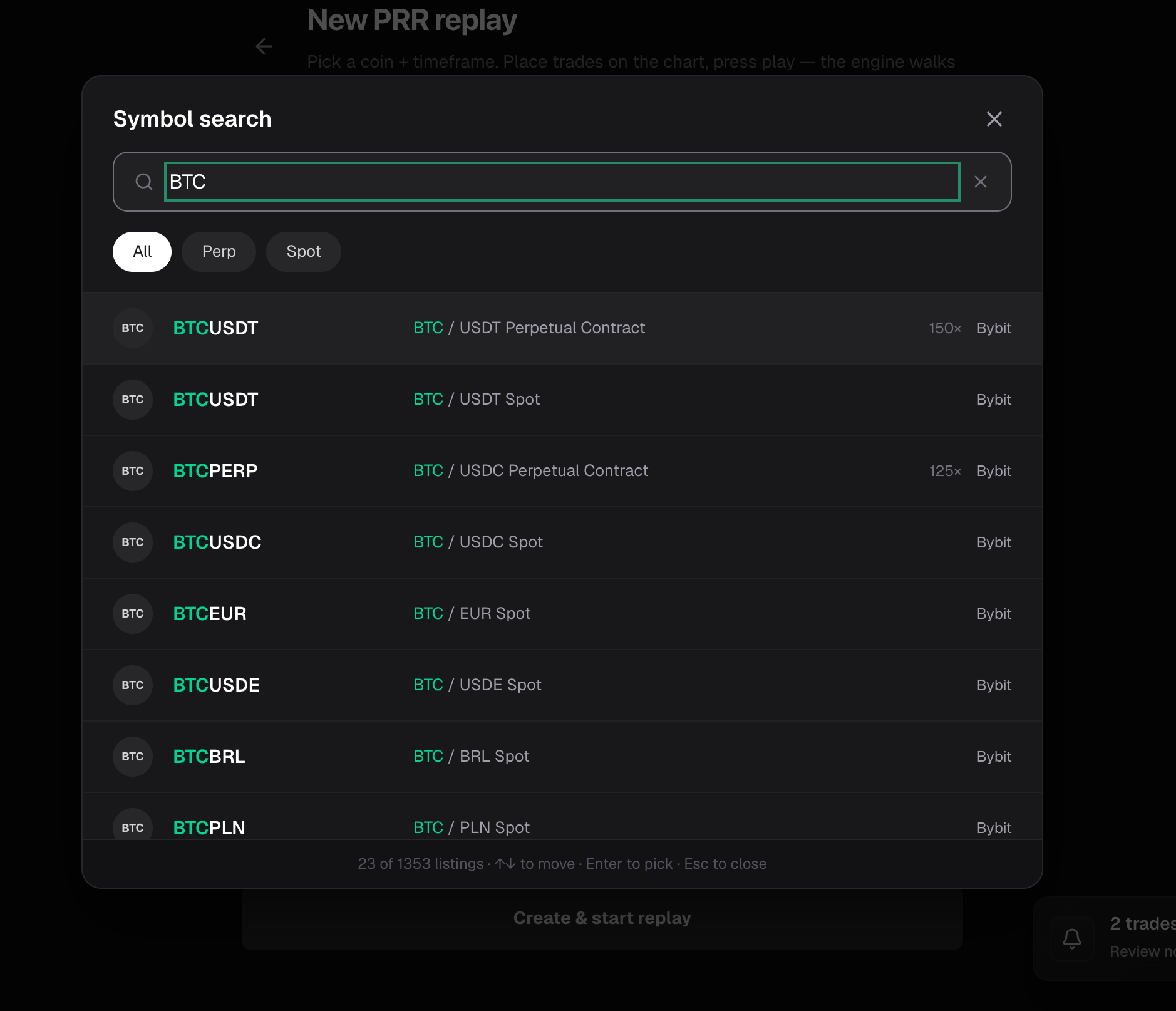
5.5Candles come from Bybit, BingX or Binance, so you can search anything they list, spot or perpetual. Arrow to the one you want and press Enter — the badge on each row is the venue your session will replay.
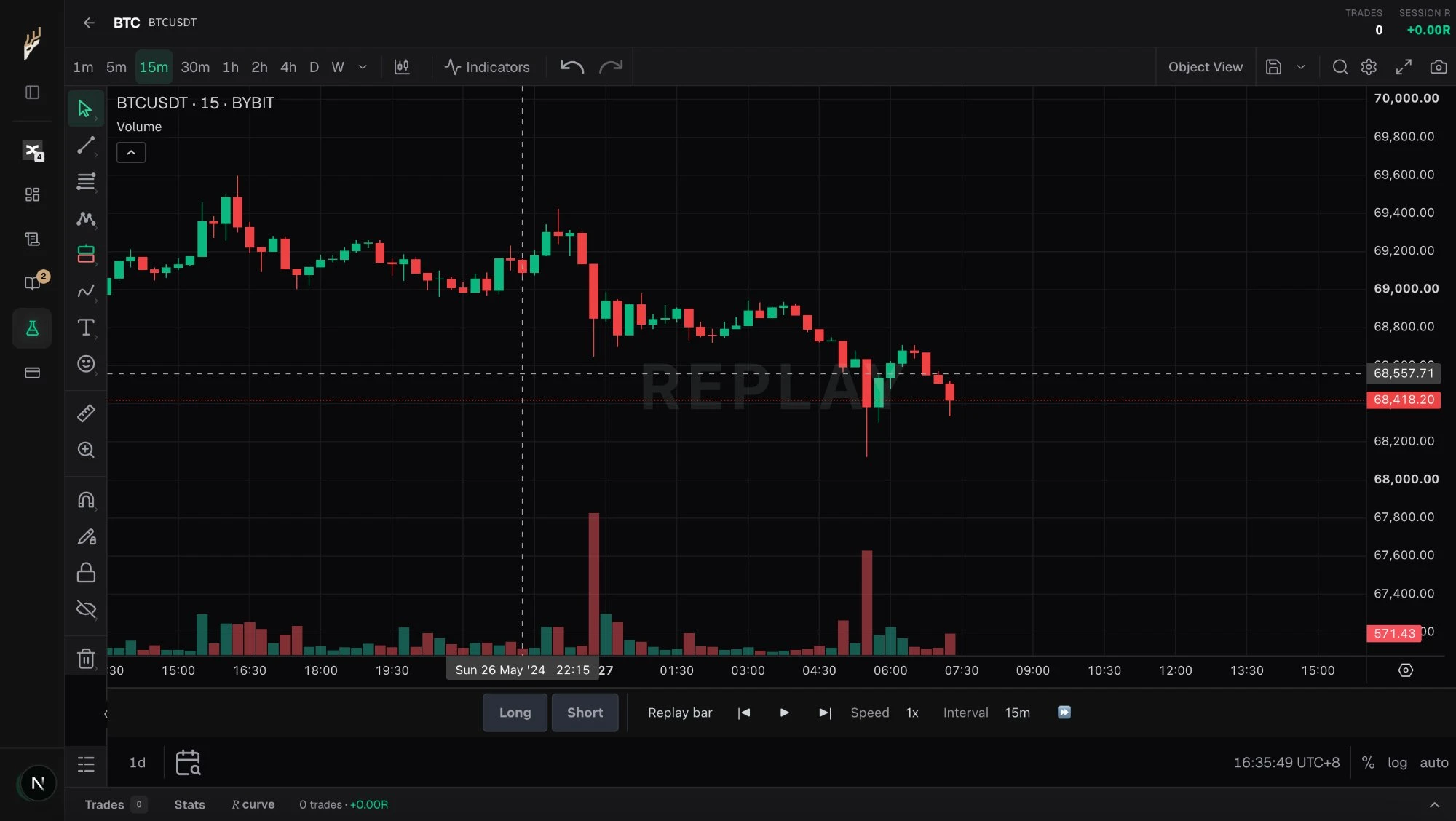
5.6The chart opens paused on your start bar. Press Long or Short 1 to drop a draft bracket onto it. The controls beside them 2 step one bar, play the replay, and move the playhead.
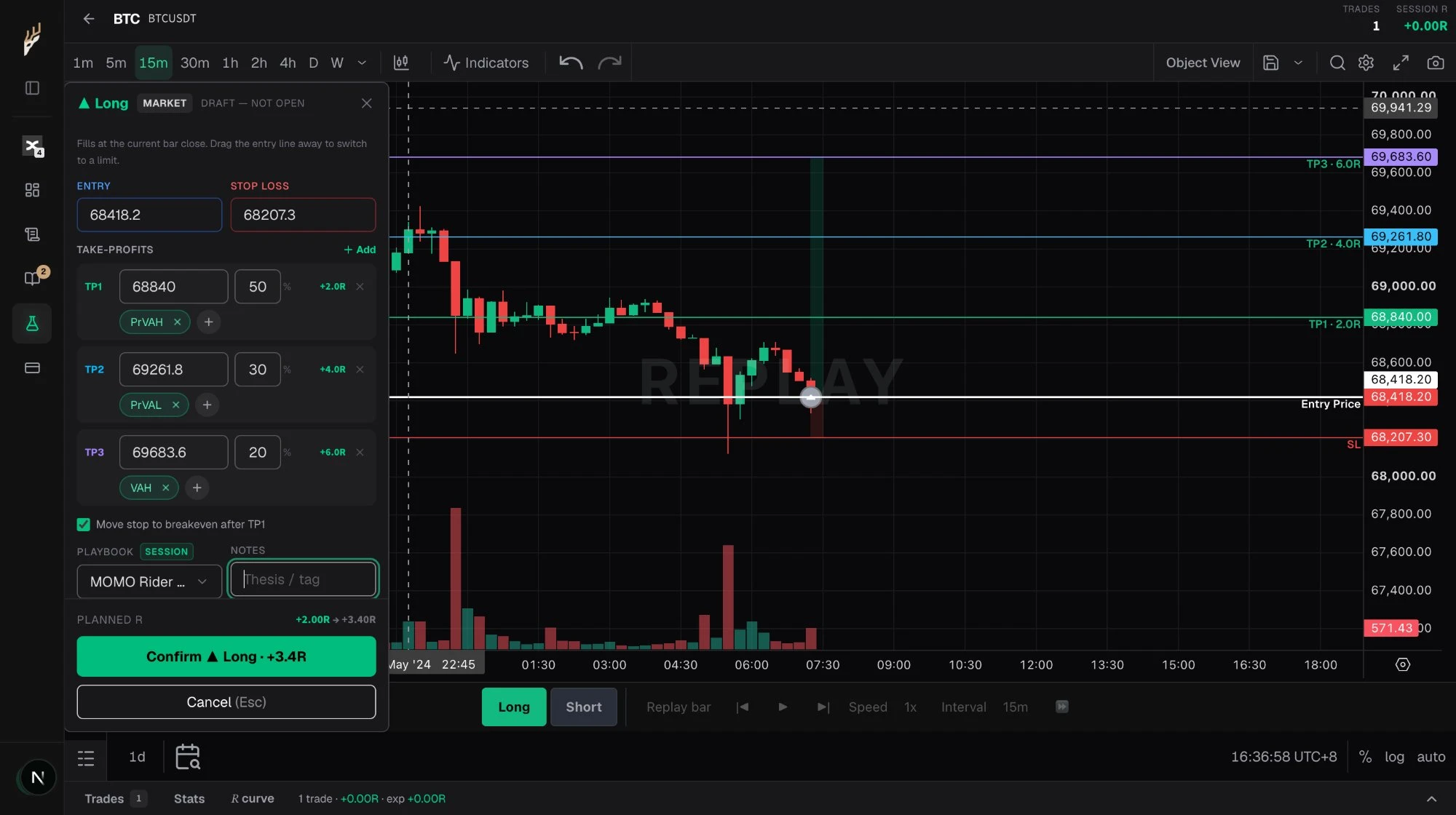
5.7Drag the entry, stop and take-profit lines on the chart, or type the prices in. Each target takes a share of the size and shows the R it is worth. Tick Move stop to breakeven after TP1 if that is your rule, then press Confirm. Planned R is your plan: it is recorded before the outcome is known and never back-filled from it.
5.8Press play. On every bar the engine checks price against your levels in order — TP1, TP2, TP3, or the stop — moves the stop to breakeven if you asked it to, and logs the realized R the moment the trade resolves.
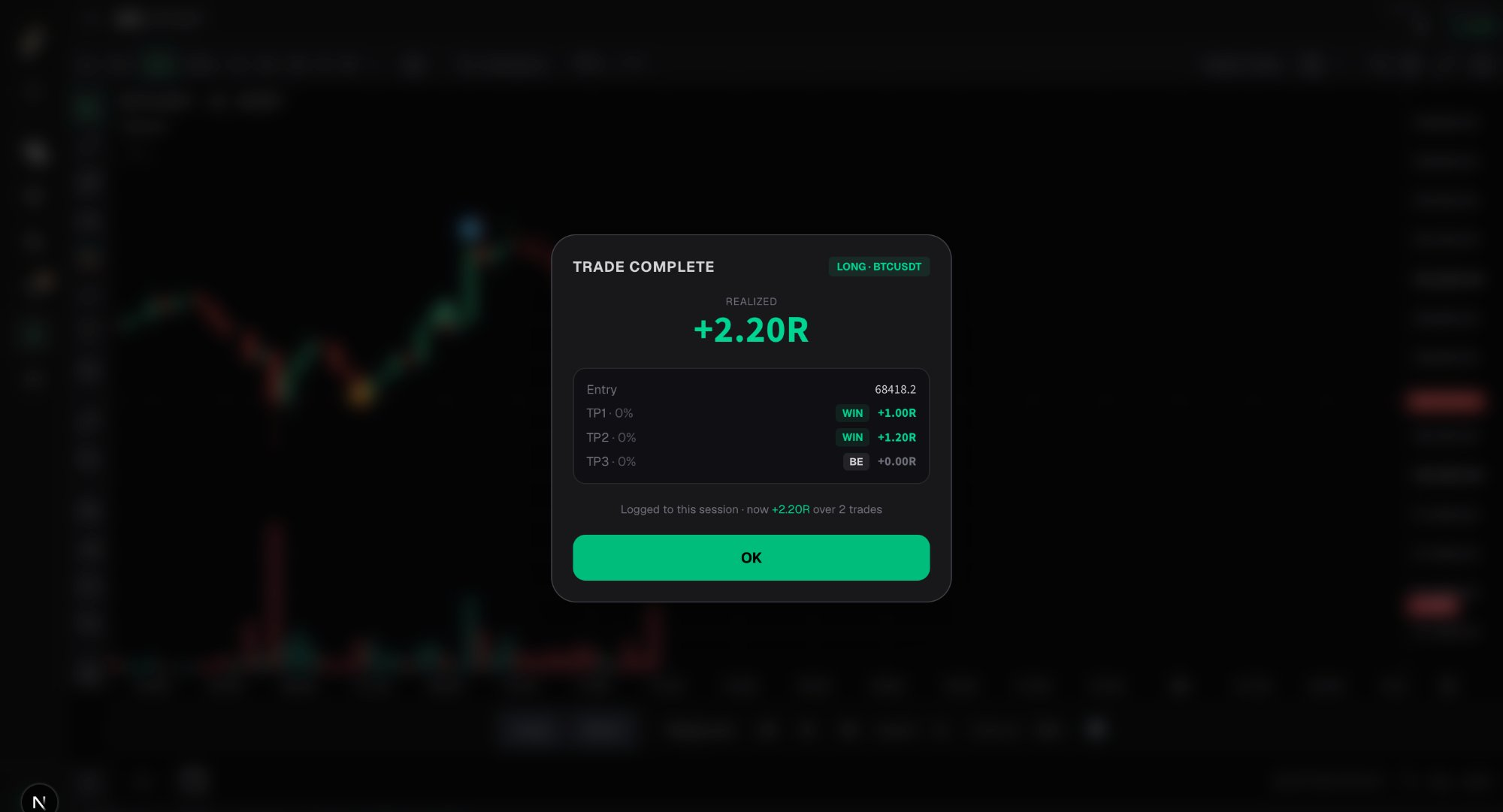
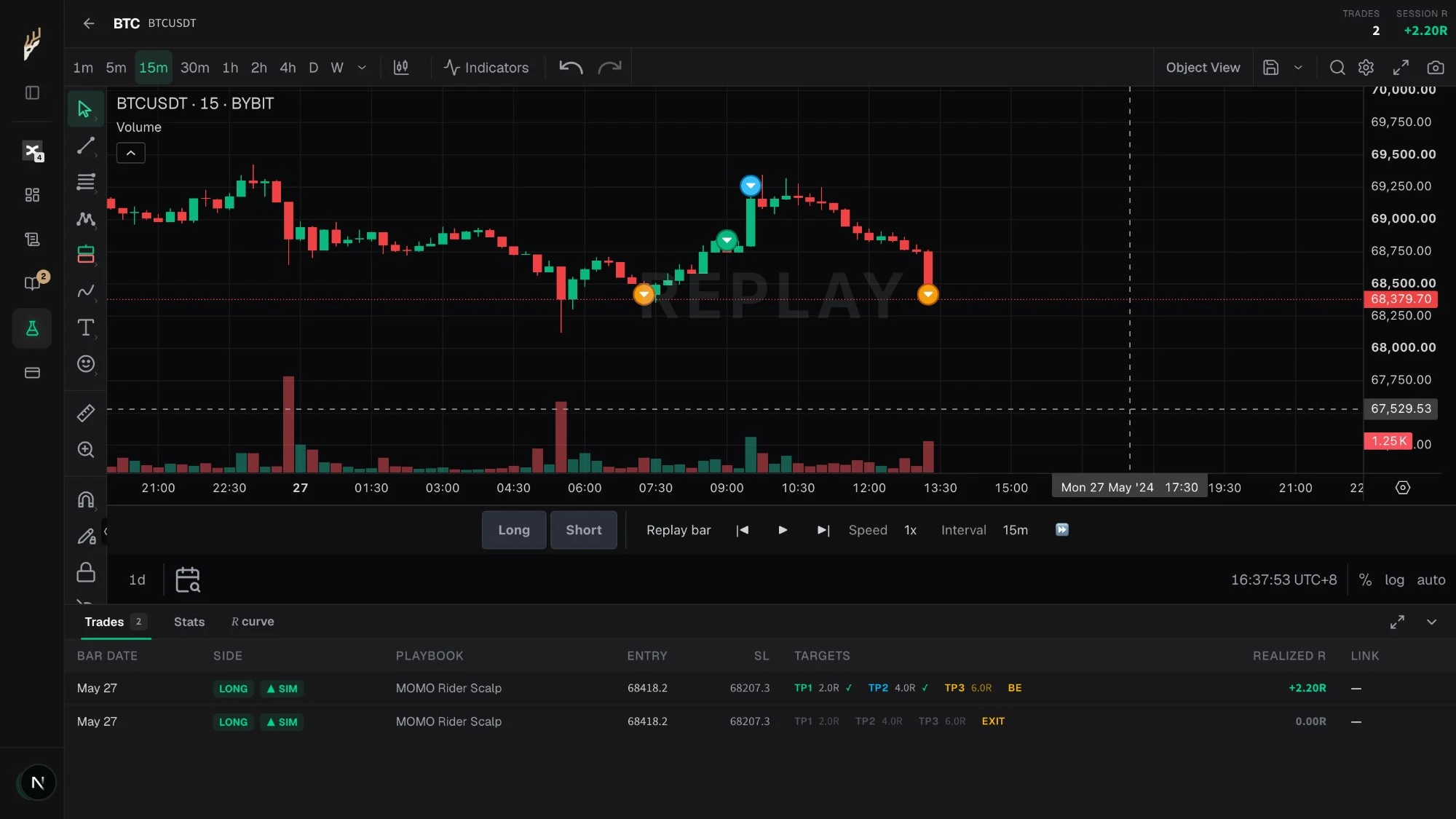
5.9Two things land. On the chart 1 you get one marker per leg: green where you entered, blue where a target paid, orange where the position closed. Under it, in Trades 2 there is a row per trade — entry, stop, which targets filled, and the realized R. The running total sits top right as Session R.
That's the loop.
Connect once, write your SOP once, then tag and journal as you trade.
Join the beta